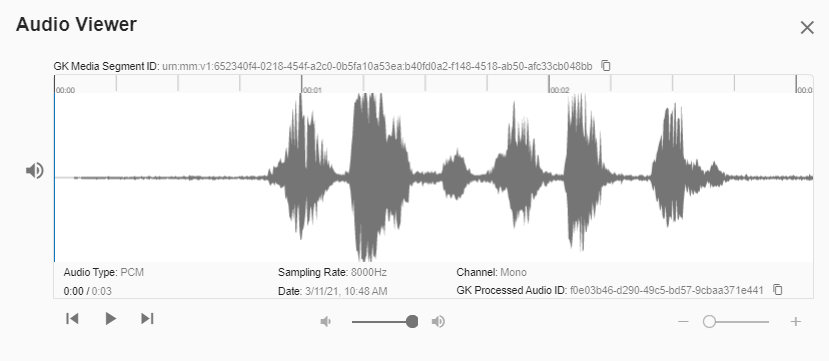
Biometric samples
You can perform various actions on biometric samples using the Engagements, Fraudsters, or Person Profile pages.
Manage biometric samples
To manage biometric samples:
- Open the desired page by selecting the relevant icon on the navigation toolbar.
- Locate the biometric sample in one of the print profiles or sessions.
- Examine the biometric sample. For instance, if the sample is an audio segment, click the Play icon to listen to the audio.
- In the Print Profile, click the menu on the right side of the biometric sample. You can view the details of the biometric sample such as audio identifier.
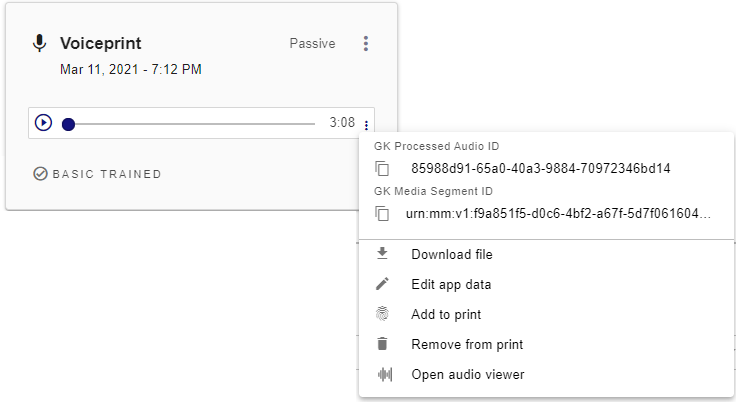
- Select one of the following actions:
- Add to Print-Adds the biometric sample to a new or existing print profile. This action requires opting the person in.
- Remove from Print-Removes the biometric sample from the Print Profile. Only available in the Profile page.
- Edit-Modifies the biometric sample using a waveform editor.
- Download audio-Downloads the sample to a file.
- Audio App Data-Edit app data.
- Show top-x details-Shows the top x fraudsters that match the biometric sample. Only available in the Engagements page.
- Compare to Persons-Compares the sample to a print profile. Only available in the Engagements page.
- Compare to fraudsters-Checks if the sample belongs to a known fraudster. Only available in the Engagements page.