Fraudster and person profiles
A person is someone whose biometric data is to be analyzed for authenticity. A fraudster is someone who is known to be an imposter and is tracked in a fraudster watchlist. Both entities have similar web management pages.
Create a profile
To create a new fraudster or person profile:
- Select the Person or Fraudster icon on the navigation toolbar.
- Click New Person or Fraudster.
- Enter an external identifier or a name.
- Click Ok. You can now edit the new profile.
Edit a profile
Edit an existing Profile or perform various operations on entities associated with the Profile from the Gatekeeper web admin portal. Alternatively, you can also use the API to edit person profiles.
To edit a profile:
- Select the Person or Fraudster icon on the navigation toolbar.
- Type the name or ID in the search text-box and click Search.
- Perform various actions including:
- Manage Print Profiles.
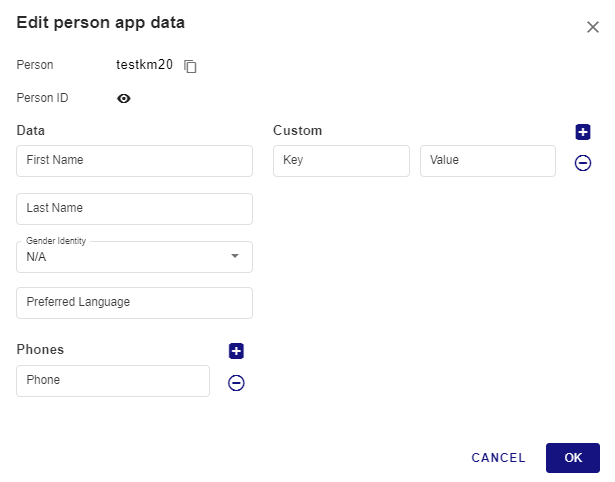
- Edit personal information such as first name, last name, phone numbers, and more.
- Run a biometric verification.
- Deleting the person or fraudster Profile, deleting their Print Profiles, or deleting the biometric samples. See Delete entities.
- Handle consent.
- Edit Print and audio app data.
- Add the person to a group or adding the fraudster to a watchlist.
- Add the person to a group or adding the fraudster to a watchlist.
- Filter and examine the most recent engagements that the person or fraudster participated in at the bottom of the page. Details include date and time of the engagement, duration, score, verdict, and more. Click the link to analyze engagement results in the Engagement page.
Handle consent
Gatekeeper collects consent from the person to collect biometric data. However, consent is not relevant for Fraudsters and is given at the person level, not per Print.
To view consent status and details in the person profile:
- Select the Person icon on the navigation toolbar.
- Type the person name or ID in the search text-box and click Search.
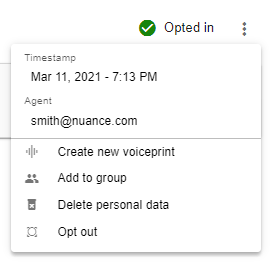
- In the person profile, examine the consent status on the top right. Statuses are: Undefined, Consent given, or Consent not given. Select the three dot menu to the right of the consent status to view consent details such as Agent or Web User and timestamp.